
Tags are manual labels you apply to captures to keep your review organized. Use them to track your own workflow — for example "Reviewed," "Needs review," or "Key evidence" — or any custom label that fits your matter.
Creating and applying tags
Type a new tag to create it, then apply it to any capture. Tags are unlimited, so you can build up whatever set of labels works for you and filter the case by them.
How to add a tag
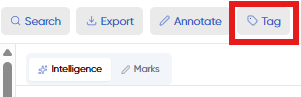
- Open a capture and click Tag on its toolbar.
- Use Search or create a tag to find an existing tag or type a new one.
- Review starts you off with a few common tags you can use as-is — Flagged, Key Evidence, Needs Review, Privileged, Responsive, and Reviewed — or you can create your own.
- Select the tag to apply it. Applied tags show on the capture and can be used to filter the case.
Removing tags
You can remove a tag easily. If the tag is currently applied to any captures, Review asks you to confirm first — deleting the tag also removes it from every capture it's attached to.
Tags are entirely under your control and don't use AI.