
Captures get into Review one way: you send them from Page Vault. There is no separate upload — this keeps a clear line between the evidence you captured defensibly and the workspace where you analyze it, and it means you stay in control of exactly what the AI sees.
To send captures
- In the Portal, open the folder that has the captures you want
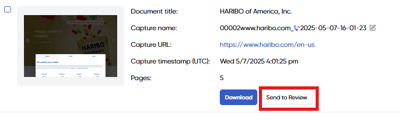
- For single captures, select the "Send to Review" button next to the Download button
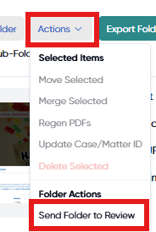
- For entire folders, select "Send to Review" under the actions drop-down at the top of your Portal
- Choose an existing case from Case Name, or select Create a new case and fill in the Case Name and, optionally, a Matter ID.
- Confirm to send. Review will process the captures before they're fully searchable.
You can send a single capture or an entire folder at once, which is the fastest way to move a large matter into Review in one step.
Processing time
After you send captures, Review needs a short time to process them — generating summaries, extracting entities, and preparing them for search. Very large sets take a little longer before everything is fully searchable.
Supported capture types
Review works with snapshot captures in this version; file captures, PDFs, and video aren't supported yet.