
The redesigned sidebar in the Page Vault Browser is your control center for browsing, capturing, and quickly accessing recent work — all without leaving the page you're viewing. This article walks through each section so you can find your way around with confidence.
Sidebar Overview
At the top of the sidebar you'll always see:
- The Page Vault logo
- Back, forward, and refresh navigation controls
- The URL bar (where you enter the address you want to capture)
Below the URL bar, two views split your workflow: Tabs and Captures.
The Tabs View
The Tabs view is where you actively browse and capture content. When you first open the browser, you'll see a prompt to enter a URL to get started.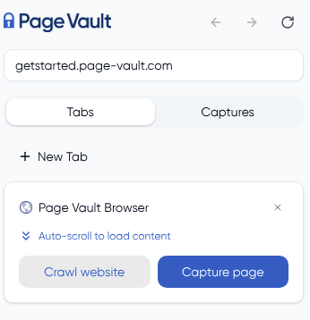
What you'll find here:
- New Tab: Open an additional browsing tab so you can work with multiple pages at once.
- Auto-scroll to load content: Click this to automatically scroll the page from top to bottom. This loads in any lazy-loaded content for review and triggers pop-ups before you capture, so nothing is missed.
- Crawl website: Launch the Site Crawler to capture an entire site (premium feature).
- Capture page: Open the Capture panel to preserve the current page as an authenticated PDF.
The Captures View
Switch to Captures to see a quick view of your recent activity without leaving the browser. The view shows your 10 most recent captures.
Each capture card displays:
- A thumbnail preview of the captured page
- A page count badge (for example, "3 pages")
- The capture name
- The folder where the capture is saved
- The date and time the capture was created
This is the fastest way to confirm a capture went through or grab something you just saved without bouncing back to the Portal.
Starting a Capture
Clicking Capture Page opens the Capture panel for the URL in your browser. From here, you'll set everything the capture needs before kicking it off: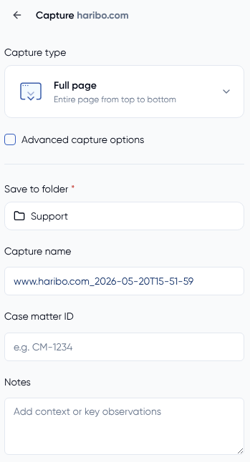
- Capture type: Choose how much of the page to preserve. Defaults to Full page. See our article here for more information!
- Advanced Capture Options: Expand a set of additional controls that give you finer control over how the capture is generated. See our article here for more information!
- Save to folder: Required. Select the destination folder in your Portal. Your last-used folder is pre-selected after your first capture.
- Capture name: A default name (URL + timestamp) is pre-filled. You can rename it.
- Case matter ID: Add a CMID such as "CM-1234" if your organization uses them.
- Notes: Add any context or key observations. Notes appear in the Portal and in the metadata CSV, but do not print on the downloadable capture.
Once your settings are in place, click Start to run the capture. The status will display in the left-hand panel of the browser, and the finished capture will appear in your Captures view and in your Portal folder.