
Overview
Page Vault now offers three powerful methods to collect and preserve social media content. This guide outlines how to use:
-
Metadata-Only Scrape
-
Scrape and Capture
-
Bulk URL Capture
Each method is designed for different workflows, depending on the volume of content and whether you need full captures or just metadata.
When using Batch in the Portal, you’ll first choose a platform (Facebook, LinkedIn, or Instagram) from the drop-down menu.
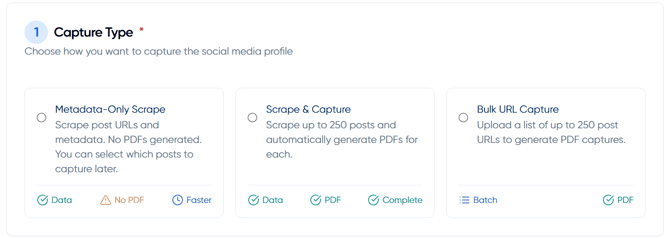
1. Metadata-Only Scrape
Platforms: Facebook and LinkedIn (public profiles)
Note: We are currently only able to scrape fully public profiles that are viewable without being signed in.
Overview:
Collect metadata from up to 20,000 posts without capturing the actual post content.
Best For:
-
Large profiles (up to 20,000 posts)
-
Pre-analysis before choosing which posts to capture
-
Exporting data for reports or analytics
Captured Metadata Includes:
-
Post URLs
-
Post date
-
Number of likes, comments, and shares
-
Caption text
Steps to Use:
-
Go to Batch > Social Media in the Page Vault Portal.
-
Select Metadata-Only Scrape.
-
Enter the profile URL.
-
Edit or accept the default Job Name.
-
(Optional) Add a Case Matter ID.
- (Optional) Select a Date Range
-
Click Start Scrape.
Details:
-
No login or credentials required
-
Runs in the background
-
Duration: A few minutes to 1–2 hours, depending on profile size
-
You can leave and return later
2. Scrape and Capture
Platforms: Facebook and LinkedIn (public profiles)
Overview:
Scrape metadata and automatically capture up to 250 posts from a profile.
Best For:
-
Small to medium-sized profiles
-
Preserving entire profiles without manually selecting posts
- Capturing a specific timeframe
Steps to Use:
-
Go to Batch > Social Media and choose Scrape and Capture.
-
Enter the profile URL.
- (Optional) Select if you would like embedded videos captured
- (Optional) Select a Date Range
-
Install the Page Vault browser extension (if not already installed).
-
Log in to Facebook in Chrome.
-
Authenticate using one of two methods:
Browser Auth (recommended):
-
Use the browser extension
-
Sign in to the social media platform in your native browser
-
Click Authenticate and Allow
Enter Cookies Manually:
-
Sign in to the platform using the Page Vault Browser
-
Click Gear Icon > Copy Cookies
-
Paste cookies into the authentication field in the Portal
-
-
Click Start Scrape and Capture
What Happens Next:
-
Up to 250 posts are scraped and captured automatically
-
A live capture table displays:
-
Post URL
-
Date
-
Likes, comments, shares
-
Caption text
-
-
Captures appear in the right-hand panel (tile or table view)
-
You can view, download, or export metadata to CSV
3. Bulk URL Capture
Platforms: Now available for Facebook, LinkedIn, and Instagram
Instagram will be available in our update, releasing soon!
Overview:
Already have post URLs? Capture them all at once—up to 250 at a time.
Best For:
-
Selectively capturing posts identified in a metadata scrape
-
Uploading a curated list of post URLs for capture
Steps to Use:
-
Go to Batch > Social Media and select Bulk URL Capture.
-
Paste your list of Facebook post URLs (maximum: 250).
- (Optional) Select if you would like embedded videos captured
-
Enter a Job Name.
-
Authenticate using one of two methods:
Browser Auth (recommended):
-
Install the Page Vault Browser Extension
-
Sign in to the social media platform in Chrome or Edge
-
Click Authenticate and Allow
Enter Cookies Manually:
-
Sign in to the platform using the Page Vault Browser
-
Click Gear Icon > Copy Cookies
-
Paste cookies into the authentication field in the Portal
-
-
Click Start Capture
Watch a Quick Demo Here: