
Option 1: Page Vault Browser
- Open the Page Vault Browser.
- Navigate to the website you want to crawl.
- Close any pop-ups and sign in if needed. Your session and cookies will carry over to the crawl.
- In the sidebar, click Crawl website.
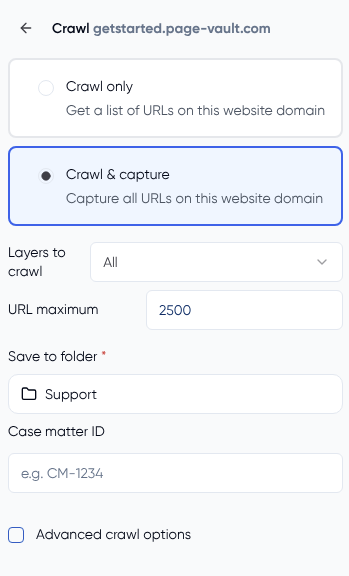
- In the Crawl panel that opens, choose your crawl type:
- Crawl only — Generates a list of URLs found on the domain without saving any captures.
- Crawl & capture — Finds every URL and captures each one as a PDF (default).
- Set Layers to crawl. Defaults to All. Reduce this to limit how deep the crawler follows links from the starting page.
- Set the URL maximum. Defaults to 2,500. Lower or increase this (up to 20,000) if you want to cap the size of the job.
- Choose the folder where captures should be saved (required).
- (Optional) Add a Case matter ID if your organization uses CMIDs.
- (Optional) Check Advanced crawl options to narrow the scope further:
- Required URL text — Only include URLs that contain this string (for example, /collections/womens-all).
- Excluded URL text — Skip any URLs that contain these strings. Enter one per line.
- Click Crawl site to start the job.
- You can close the Page Vault Browser — your crawl will continue in the background.
- View the results in the Site Crawler section of your Portal when the job completes.
Tip: Any cookies or login information are saved automatically when using Capture Mode.
Option 2: Portal
-
Log in to your Page Vault Portal

-
Click Site Crawler at the top.
-
Select New Crawl.
-
Enter the website URL.
-
Add cookies manually (only if needed).
-
Choose your crawl type:
-
Crawl and Capture – finds and saves each page.
-
Crawl Only – finds pages, but doesn’t save them yet.
-
-
Set how deep to crawl (layers) and how many pages to include.
-
Choose a folder to save your captures (optional).
-
Click Start Crawl.