
Page Vault's folder sharing feature allows you to securely share view-only access to captured evidence with colleagues, clients, or external experts—no downloads or exports required. It’s built for efficient collaboration while preserving the original integrity of your evidence.
Need a walkthrough? Watch the demo here.
How Folder Sharing Works
You can share any folder in your Page Vault account using one of two methods:
-
Email Invitation
Send access directly to specific email addresses.
Recipients must validate their email before gaining access. -
Public Link
Generate a secure URL to share with multiple recipients.
Anyone with the link can view the folder and any sub-folders.
All shared folders are view-only, and access can be revoked at any time.
Sharing a Folder
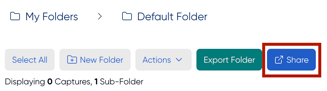
- Open the folder you want to share.
- Click the "Share" button.
- Choose to either:
-
- Choose colleagues from the list, or enter any email address, to send an invitation
- Generate a public link
- Share the link or confirm the invitation to grant access
- Click "Send Invite" — invitations are only sent when you click it, so you can build up the list first.
To stop sharing a folder:
- Go to the shared folder
- Click "Manage Sharing"
- Select "Stop Sharing"
Inviting Your Team
When you invite by email, Page Vault shows everyone on your account so you can add several colleagues without typing their addresses.
- Open the folder and click "Share" (or "Manage Sharing").
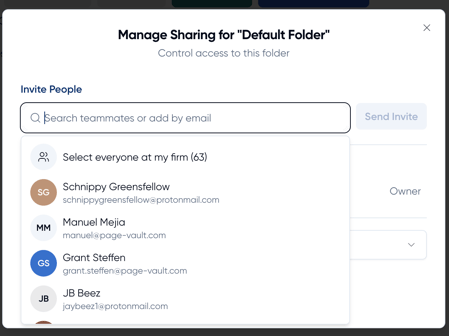
- Click the invite field, labeled "Search teammates or add by email." A list of your colleagues appears.
- Add people, either way:
-
- Click a name to add it
- Click "Select everyone at my firm" at the top to add everyone at once
- Type or paste any email address — including people outside your firm — and press Enter
- Review the list. Remove anyone with the × beside their name.
- Click "Send Invite."
-
- Typing filters the list by name or email
- People already on the folder, and you, are left out of the list automatically
- Invitations are sent when you click "Send Invite" — nothing is sent as you build the list
- If any invitation fails, Page Vault tells you which addresses didn't go through; everyone else is invited as normal
- New colleagues are not added automatically. Anyone who joins your account after you send invitations won't have access — open "Manage Sharing" again to invite them
Receiving a Shared Folder
- If you're a Page Vault customer, folders shared with you will appear in the "Shared with Me" section of your folder list.
- External users do not need a Page Vault account to view shared folders. They only need to verify their email.
Security and Control
- View-only access maintains evidence integrity
- Email verification is required before access is granted
- Folder owners can revoke access at any time
Frequently Asked Questions
Does folder sharing affect storage limits?
No. Only the folder owner's account reflects storage usage.
Is this secure for legal use?
Yes. All shared content retains its metadata and authentication, with full audit tracking.
Do recipients need Page Vault accounts?
No. Recipients can access shared folders after verifying their email.
Is additional software required?
No. Sharing is handled securely through the browser with no software installation needed.
Can shared content be downloaded?
Yes. Individual captures can be downloaded, as well as exporting the folder as a whole.
What if I send a link to the wrong person?
They cannot access the folder unless they verify the correct email address. Access can also be revoked immediately.
Can I share a folder with everyone at my firm at once?
Yes. When you click the invite field without typing, choose "Select everyone at my firm" to add every colleague who doesn't already have access, then click "Send Invite."
Will new team members automatically get access to folders I've already shared?
No. Invitations apply to the people on your account at the time you send them. To give a new colleague access, open the folder, click "Manage Sharing," and invite them.
Why isn't a colleague showing in the list?
They may already have access to the folder — people already on the folder are hidden from the list. Otherwise, check that they're an active user on your Page Vault account. You can always invite them by typing their email address directly.