
💡 These steps follow the redesigned Page Vault Browser. Legacy screens may look a little different, but the workflow is the same! (The legacy browser retires July 15, 2026.)
By default, Page Vault includes a cover page and footer metadata (such as capture timestamp and URL) in each capture. If you prefer cleaner files without this information, you can turn off these settings directly in the Page Vault Browser.
Turn Off Cover Page and Footer Metadata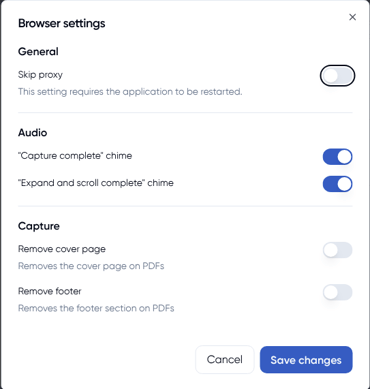
-
Open the Page Vault Browser.
-
Click the Geat Icon in the bottom left.
-
Under the Browser Settings section, toggle on:
-
No Cover Page
-
No Footer
-
-
Close the Settings tab — your preferences will be saved automatically.
Tip: These changes will apply to all future captures made in the browser until toggled back off.