
💡 Looking for the legacy browser? Switch to the legacy version of this article.
When capturing web content with Page Vault, you may notice a blue border appearing around the page and the content being resized. This typically happens when standard page-width adjustments are applied to the capture. While these adjustments can help normalize page width across captures, they may unintentionally zoom in or shift elements on the page — particularly images or layout components.
To stop this from happening, enable the "Prevent Page Resizing" option in the capture window's Advanced capture options.
To disable page resizing: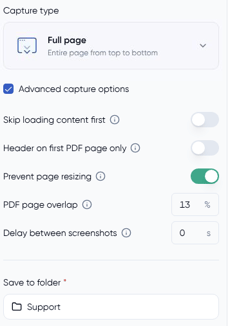
- In the capture options, check the box for Advanced capture options.
- Locate the Prevent page resizing toggle in the expanded options.
- Switch the toggle on (green).
- Select your folder and start your capture as normal.
Enabling Prevent page resizing ensures that the webpage maintains its natural layout during capture, reducing the chance of content being distorted or shifted.
Additional tip:
If turning on Prevent page resizing doesn't fully resolve the issue, try using a Current View Only capture instead. This capture type prevents any resizing behavior and gives you more control over the visual accuracy of your capture!