
Page Vault makes it easy to capture YouTube content, whether you need just the video, the webpage with an embedded video, or all videos from a channel. Follow the steps below based on your capture needs.
Capturing Video Only
Use this option when you only need the video file.
-
Navigate to the YouTube video(s) you need.
-
Copy the full URL from your browser’s address bar.
-
Log in to your Page Vault Portal.
-
Go to the Batch Tool and select the Video job type.
-
Paste the copied YouTube video URL(s) into the input field.
-
You can paste multiple URLs at once (one per line) if capturing several videos.
-
-
View the completed captures in your Portal.
Capturing Video + PDF Capture
Use this option to capture both a PDF of the YouTube page and the video file.
-
Copy the full URL of the YouTube video(s).
-
Log in to your Page Vault Portal.
-
Open the Batch Tool and select the Web Page job type.
-
Paste the YouTube video URL(s) into the input field.
-
Turn on the Capture Embedded Videos option in the job settings.
-
Start the Batch job.
-
Once complete, both the PDF and the video file will appear in your Portal.
Capturing PDF Only
💡 These steps follow the redesigned Page Vault Browser. Legacy screens may look a little different, but the workflow is the same! (The legacy browser retires July 15, 2026.)
Use this option if you only need a PDF capture of the page with comments expanded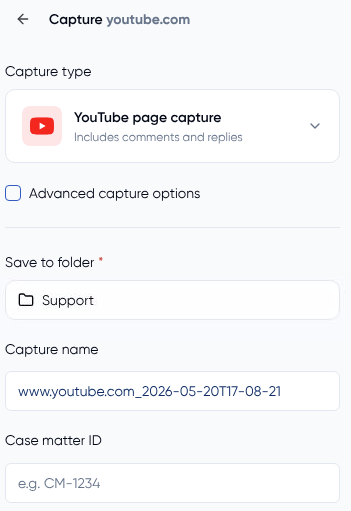
-
Copy the full URL of the YouTube video
- Log in to your Page Vault Portal and launch the Page Vault Browser
- Paste the URL into the URL bar and press enter
- Click on "Capture Page"
- Under the Capture Type selection, select the YouTube option
- This will expand the description, as well as all comments and replies on the page
- Select your folder and other capture options
- Start your capture!
- Once complete, the PDF will be available in your Portal.
Capturing an Entire Channel
Use this option to capture all videos uploaded to a YouTube channel.
-
Navigate to the YouTube channel in your browser.
-
Click the Videos tab to see all uploaded videos.
-
Scroll down the page until all videos are loaded (YouTube loads more as you scroll).
-
Use the Link Grabber browser extension to extract all video URLs from the page.
-
Copy the list of video URLs from the extension.
-
Log in to your Page Vault Portal and open the Batch Tool.
-
Choose your preferred job type:
-
Web Page + Capture Embedded Videos → PDF + video files.
-
Video → Video files only.
-
-
Paste the video URLs into a new Batch job.
-
Start the Batch job and access your captures in your Portal once complete.