
Vimeo offers a wide range of video content, but download options vary depending on the uploader's settings. In most cases, capturing a Vimeo video just takes signing in and adding your cookies.
Start here: Add cookies from a signed-in Vimeo session
Sign into Vimeo in your browser, then add cookies from that session to your capture. Vimeo will recognize you as a signed-in viewer, and the capture should go through successfully. Our guide here has steps on copying cookies!
If the capture still doesn't work, try one of the methods below.
Method 1: Use Vimeo’s Built-In Download Option (Preferred)
If the video owner allows downloads, this is the fastest and cleanest option.
-
Sign into Vimeo and navigate to the desired video.
-
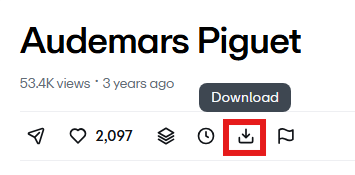
Check for a Download button beneath the video (not all videos will have this).
-
-
Click Download, then under Video, choose the quality you’d like (e.g., 1080p, 720p).
-
Right-click the download icon next to your preferred quality and select Copy URL.
-
Paste the copied URL into Batch Video in Page Vault to capture and preserve the file.
Method 2: Use a Third-Party Downloader
If the video doesn’t have a visible download option, a third-party site can help generate the direct video file link.
-
Go to https://y2mate.yt/en/.
-
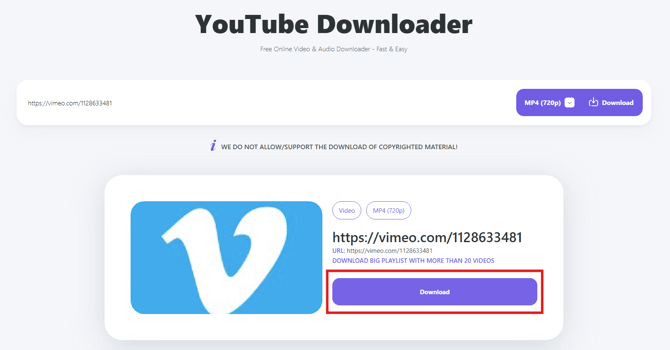
Paste the Vimeo video URL into the field provided.
-
Choose the desired video quality, then click Download.
-
When the second Download button appears, right-click it and choose Copy Link.
-
Paste that link into Batch Video to capture the video in Page Vault.
If these steps don’t work:
Some Vimeo videos have unique restrictions or advanced embedding that prevent standard downloading. If you encounter issues or the links don’t resolve correctly, please reach out to Page Vault Support — our team can help troubleshoot or complete the capture for you.