
Steps to Capture Individual TikTok Posts
- Open the Page Vault Browser.
- Paste the TikTok post URL into the address bar and press Enter.
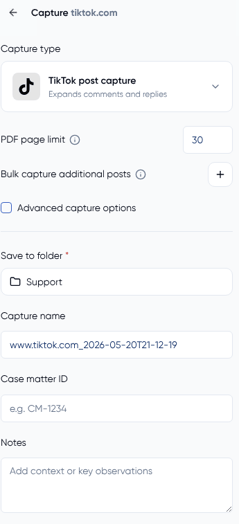
- Click Capture Page in the sidebar to open the Capture panel.
- The Capture type is automatically set to TikTok post capture (Expands comments and replies). Leave this selected.
- Select your destination folder (required).
- Add a Capture name, Case matter ID, or Notes if needed.
- Click Start.
Page Vault will scroll the post, automatically expand all comments and replies, and save it as an authenticated PDF in your selected folder.
Steps to Capture a List of TikTok Posts
You can now capture multiple TikTok posts in the same job directly from the Capture panel — no need for a separate workflow.
- Open the Page Vault Browser and navigate to any TikTok post URL.
- Click Capture Page to open the Capture panel.
- Leave the Capture type set to TikTok post capture.
- Click the + button next to Bulk capture additional posts.
- Paste in the additional TikTok post URLs you'd like to capture — one per line.
- Confirm your destination folder, capture name, case matter ID, and notes.
- Click Start.
All posts will be captured in the same job and saved together in your selected folder, each with comments and replies fully expanded.