
Webpages may be built with nested "containers" rather than a standard scrollable layout. These containers — also called scroll boxes — isolate sections of the page so they scroll independently from the rest of the site. The Page Vault Browser now includes a dedicated capture type for these areas.
Use the Specific Scroll Box Capture Type
- Open the Page Vault Browser and navigate to the page you want to capture.
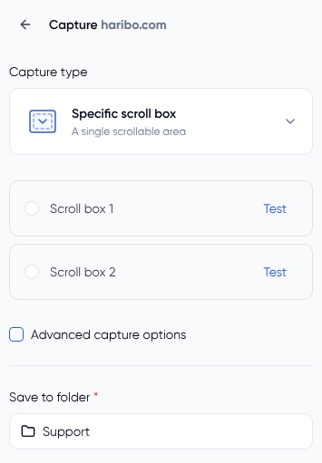
- Click Capture page in the sidebar to open the Capture panel.
- Open the Capture type dropdown and select Specific scroll box (A single scrollable area).
- Page Vault will detect any scrollable containers on the page and list them (Scroll box 1, Scroll box 2, and so on).
- Click Test next to each scroll box to preview which area on the page it corresponds to. The container will highlight in the browser so you can confirm the right selection.
- Select the radio button next to the scroll box you want to capture.
- (Optional) Check Advanced capture options to adjust settings like PDF page overlap or Delay between screenshots. Increasing the PDF page overlap helps ensure no content is missed between PDF pages.
- Select your destination folder, then add a Capture name, Case matter ID, or Notes if needed.
- Click Capture!
Page Vault will scroll through the selected container from top to bottom and produce a PDF of that area only.
When No Scroll Box Is Detected
If:
- No scroll boxes appear in the list, or
- None of the listed scroll boxes corresponds to the area you want to capture,
Then the issue is not related to scroll boxes. This is common on pages with complex layouts, built-in scroll behavior, or dynamic content (such as moving images or animations). In these cases, use the Current view only capture type instead.
Use Current View Only Captures
- Manually scroll to the first section you want to capture.
- Open the Capture panel and choose Current view only from the Capture type dropdown (shortcut: Ctrl+U).
- Capture the visible screen exactly as-is.
- Repeat for each section of content you need.
After capturing all segments, merge them into a single PDF during export for a cleaner, more organized result. This method ensures you can still preserve all necessary content, even when standard scrolling isn't an option.