
When you're capturing a TikTok profile, you may only need posts from a certain timeframe instead of the whole profile. In the Page Vault Browser, Get post URLs lets you set a date range before the scrape runs. Page Vault emails you a CSV with only the posts in that range, along with each post's date and caption. From there, you can capture the whole list or pick the posts you need.
Because the scrape stops once it reaches posts older than your start date, a short range on a large profile finishes much faster than a full scrape.
Before you start
- You'll need the Page Vault Browser. We recommend signing in to TikTok so the scrape can load every post on the profile. You'll need to sign in to see a private account's posts.
- You'll need a spreadsheet app, like Excel or Google Sheets, to open the CSV.
Step 1: Get the post URLs for your timeframe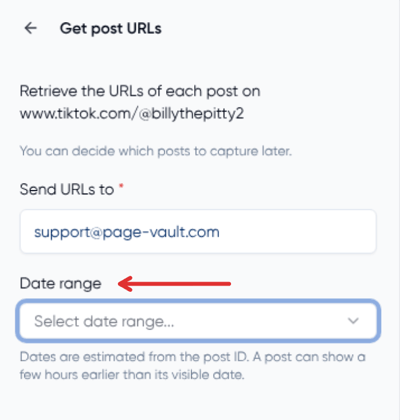
- Navigate to the TikTok profile in your Page Vault Browser.
- Sign in to TikTok if you haven't already.
- In the sidebar, open Get post URLs.
- Under the email field, set your date range. Enter a start date, an end date, or both, or choose Last 30 days.
- Run the scrape.
Page Vault will scan the profile and email you a CSV with each post URL in your range, plus its date and caption.
Tip: If you leave the date range empty, the CSV lists every post on the profile.
Step 2: Review the CSV
- Open the CSV in your spreadsheet app.
- Look through the Post date and caption columns to confirm the list covers what you need. The CSV includes both videos and photo posts.
- To find posts about a certain topic, search the caption column for a keyword with Ctrl+F (or Cmd+F on Mac).
- Check any rows with a blank Post date. Posts whose date can't be read are still included, so open them on TikTok to confirm they belong in your timeframe.
- Copy the URLs you want to capture. This can be the whole list, or only the posts that matter for your case.
Step 3: Capture the posts
- In the Page Vault Browser, navigate to any one of the post URLs from your list.
- Click Capture Page to open the Capture panel.
- Leave the Capture type set to TikTok post capture.
- Click the + next to Bulk capture additional posts and paste in the rest of your URLs, one per line.
- Select your destination folder, then add a Capture name, Case matter ID, or Notes if needed.
- Click Start.
Page Vault will capture each post in your list, expand all comments and replies, and save them together in your selected folder.
Need the video files too? You can paste the same list into a Batch Video job to download each video as an MP4. See How to Capture Social Media Videos.
Good to know
Post dates are in UTC. A post made in the evening in the United States may show the next day's date. If the exact edges of your timeframe matter, set your range a day wider on each side, then open the posts near the edges to confirm their dates on TikTok.
TikTok dates are precise. Post dates in the CSV are within seconds of the time TikTok shows.
Captions are cleaned up. TikTok adds "created by" text with the author and music to the end of some captions. Page Vault removes it so you see only the caption itself. If the caption itself uses the words "created by," they're kept.
Pinned posts won't cut your list short. Pinned posts at the top of a profile can be older than the rest. They don't stop the scrape early.
Photo posts have extra steps for images and audio. A post capture saves the photo post as a PDF. To also get the images and audio, see How to Capture TikTok Slideshow Posts.
Troubleshooting
My CSV includes every post, not just my date range.
The date range has to be set before the scrape runs. Open Get post URLs again, set your start date, end date, or both, and run a new scrape.
My CSV doesn't have dates or captions.
Dates and captions were added in November 2026. CSVs generated before then won't include them. Run Get post URLs again to get a new CSV.
My CSV is missing posts I can see on the profile.
Sign in to TikTok in the Page Vault Browser and run the scrape again. If the account is private, the account you're signed in with needs access to it.
Some rows have a blank Post date.
Page Vault couldn't read the date for those posts, so they're listed to be safe. Open each one on TikTok to check its date.
Some rows have a blank caption.
The post doesn't have a caption. Its date is still listed.
Frequently asked questions
Do I still need to sort or trim the CSV to my dates?
No. When you set a date range, the CSV only lists posts in that range.
Does the date range include photo posts?
Yes. Videos and photo posts are both included, with their dates and captions.
Can I search posts by what they say?
Yes. The caption column has the full text of each post's caption, so you can search it in your spreadsheet.
Do I need to turn anything on?
No. Date ranges, dates, and captions are available on every account.