
💡 Looking for the legacy browser? Switch to the legacy version of this article.
When capturing Instagram content, you may only need posts from a specific timeframe instead of the full profile. Page Vault makes this possible by generating a scrape of post URLs that you can filter down to the exact start and end points. This ensures you only capture the posts that matter for your case or project.
Option 1: Use Bulk Capture in Page Vault Browser
- Navigate to the Instagram profile in your Page Vault Browser.
- Sign in to Instagram when prompted.
- In the sidebar, click Get Post URLs. Page Vault will scan the profile and email you a CSV containing every post URL it finds.
- On the Instagram profile, open the post where you want the capture to start and copy its URL.
- In the emailed CSV, use Ctrl+F (or Cmd+F on Mac) to find that start-post URL.
- Repeat steps 5–6 for the post where you want the capture to end.
- In the CSV, copy the block of URLs from your start post through your end post.
- Back in the Page Vault Browser, navigate to any one of the post URLs from your filtered range.
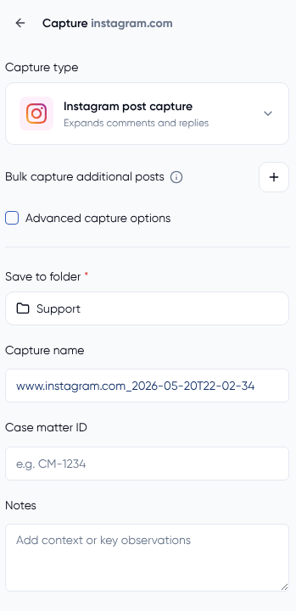
- Click Capture Page to open the Capture panel.
- Leave the Capture type set to Instagram post capture.
- Click the + next to Bulk Capture Additional Posts and paste in the remaining URLs from your block — one per line.
- Select your destination folder, then add a Capture name, Case matter ID, or Notes if needed.
- Click Start!
Page Vault will capture each post in your filtered range, expand all comments and replies, and save them together in your selected folder.
Option 2: Use Bulk Capture in Batch Social Media
If you'd rather run your filtered list as a Batch job — for example, when you have a large number of posts or want to schedule the capture for later — you can feed the same block of URLs into the Batch Social Media tool in your Portal.
- Follow steps 1–7 above to generate your CSV and copy the filtered block of post URLs.
- Open your Page Vault Portal and navigate to Batch > Social Media.
- Select Bulk URL Capture.
- Select Instagram from the platform dropdown.
- Paste in your filtered list of post URLs — one per line.
- Choose your destination folder and any additional job settings.
- Start the batch job.
Batch jobs run in the background on Page Vault's servers, so you can close the browser and monitor progress from the Job History page in your Portal.