
The Batch Web Pages feature allows you to quickly and efficiently capture multiple URLs in a single workflow. Instead of initiating separate captures for each webpage, you can queue up a list of URLs and submit them all at once. This is especially useful for large-scale or repetitive capture tasks.
There are two ways to start a Batch Web Pages job — from inside the Page Vault Browser or from your Portal. The in-browser option is recommended for any site that requires a sign-in or a dismissed pop-up, since your browser session and cookies are carried over automatically.
Option 1: Start a Batch from the Page Vault Browser
Starting your Batch inside the Page Vault Browser automatically captures your browser cookies. This lets the tool replicate your session — including sign-ins and closed pop-ups — for more accurate captures.
- Open the Page Vault Browser and paste in the first URL from your list. We recommend splitting Batch jobs by domain.
- Close any pop-ups and sign in to the site if needed.
- Once the page looks the way you want it captured, click Batch Capture in the sidebar.
- Read the quick guide and click Use Batch Capture to continue.
- Click to add the URL currently in your browser to the list, then paste the remaining URLs from the same domain — one per line.
- Click Next.
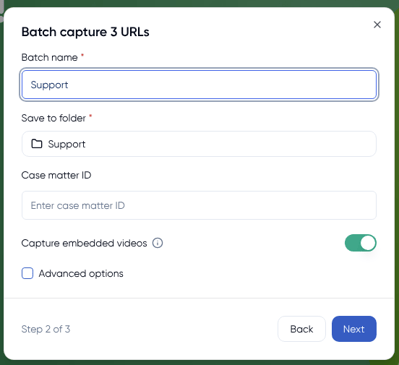
- Name your Batch job (this becomes the subfolder name where captures are grouped) and choose the parent folder where they should be saved.
- Toggle on the embedded videos option if you'd like any embedded videos preserved as MP4 files.
- Click Next, then choose whether to start the job now or schedule it for a later date. Scheduling also unlocks recurring captures.
- Click Start to begin your Batch capture.
Your captures will run in the background on Page Vault's servers, leaving your browser free to start a new capture. Monitor progress from the Job History page in your Portal.
Option 2: How to Use Batch Web Pages
-
Log into the Page Vault Portal at portal.page-vault.com.
-
From the home screen, click the Batch icon located next to the Capture button.
-
Choose Web Page as your job type.
-
Paste URLs—one per line—into the URL list box.
- Assign a Job Name, select your destination folder, and optionally add a Case Matter ID
-
Click Start Batch Capture. Attempted captures with invalid URLs will trigger a prompt—click again to confirm the valid batch
-
Monitor all batches—and their statuses—on the Job History page
Things to Know
-
Supported capture types: Social Media URLs are not supported in the Batch tool at this time. This tool is recommended for standard webpages only.
-
Limits: You can enter up to 5,000 URLs per batch submission.
Best Practices
-
Check formatting before submission: Improperly formatted or invalid URLs can interrupt the capture queue.
-
Add cookies before capturing: Adding cookies to the job can help prevent pop-ups from blocking content in the capture, as well as help our tool capture content hidden behind a sign-in.
-
Monitor your captures: You can track progress on the Job History page. Failed captures will be clearly indicated for easy review.