
The Batch Tool in Page Vault allows you to capture multiple pieces of online content — webpages, videos, and supported document types — in a single, automated session. Instead of entering and capturing each URL individually, you can paste a list of up to 5,000 URLs and have them processed together. This is especially useful when working with large sets of related content or when you need to preserve multiple sources at once.
Batch captures run in the background on Page Vault's servers, leaving your browser free to start a new capture while the job processes.
Key Features
- Bulk URL Input: Capture up to 5,000 URLs in a single job by typing or pasting them in, each on its own line.
- Four Job Types: Choose Web Page for standard webpages, Document for online PDFs, Excel files, MP3s, and other file types with a URL, Video to capture the MP4 output of video URLs, or Social Media to expand and capture social media content.
- Automated Processing: Each URL is opened, captured, and saved without manual intervention between pages.
- Cookie Capture from the Browser: Starting a Batch job inside the Page Vault Browser automatically captures your browser cookies so the tool can replicate your session — including sign-ins and closed pop-ups — for more accurate captures.
- Embedded Video Capture: Toggle on the embedded video option to preserve any MP4s found on the pages in your batch.
- Scheduling and Recurring Captures: Run your batch now, schedule it for a future date, or set up recurring captures on a custom frequency with defined start and end dates.
- Progress Tracking: Monitor the status of each URL in real time from your Portal's Job History tab.
How It Works
There are two ways to start a Batch capture — from the new Page Vault Browser or directly from your Portal.
Starting a Batch Capture in the Page Vault Browser
Note: This option is only available in the newly redesigned Page Vault Browser. If you using the legacy browser, you will not see this option available.
- Paste a URL from your list into the browser and press Enter.
- Close any pop-ups and sign in to the page if needed. (Your cookies will be captured so the batch can replicate this session.)
- Once the page looks the way you want it captured, click Batch Capture in the bottom left of your browser
- Review the quick guide and click "Use Batch Capture" to continue.
- Click to add the URL currently in your browser to the list, then paste in the remaining URLs from the same domain.
- Press Next once all URLs are entered.
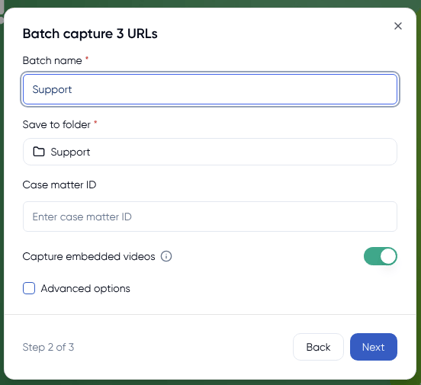
- Name your Batch job — this becomes the name of the subfolder where the captures are stored together.
- Select the parent folder where the captures should be saved.
- Toggle on the embedded videos option if you want to capture MP4s.
- Click Next, then choose whether to start your Batch job now or schedule it for a later date. (Scheduling also unlocks recurring captures.)
- Start your Batch capture.
Starting a Batch Capture from Your Portal
- Select Batch in your Portal.
- Choose your job type: Web Page, Document, Video, or Social Media.
- Select the folder you'd like your captures to be stored in.
- Name your Batch job — this becomes the name of the subfolder where your captures are grouped together.
- Paste in the URLs you'd like to capture, each on its own line.
- Set up recurring captures if needed, including the start and end dates and the frequency you'd like the pages captured.
- Toggle on the embedded videos option if you'd like any videos preserved as MP4 files.
- Start your capture once all job options are selected!
Monitoring Your Batch Jobs
- Open the Job History tab in your Portal to see all submitted Batch jobs, including the name, start date, status, and URL progress for each one.
- Click View Captures to jump to the folder in your Portal where the captures are stored.
- Click View Details to see the full job summary and the progress of each individual URL in the batch.
Best Practices
- Split Batch jobs by domain. Cookies and sign-in state are tied to the domain you started from, so grouping URLs by site produces the most consistent results.
- Verify your URL list before starting to avoid capturing incorrect or inaccessible content.
- Start the job from inside the Page Vault Browser when sign-ins, cookie banners, or dismissed pop-ups need to carry through to your captures.
- Make sure videos and documents are accessible without additional logins or security steps whenever possible.
- Use scheduling and recurring captures to automatically refresh evolving content (such as litigation-relevant pages) on a regular cadence.
Watch a Quick Demo Below: