
Annotations and redactions let you mark up a capture without changing the original. Everything you add lives on a separate working layer, so the underlying capture — and its chain of custody — stays intact.
Note: Page Vault is only able to provide affidavits for the original captures, we cannot provide affidavits for redacted or annotated outputs.
How to annotate or redact a capture
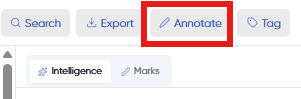
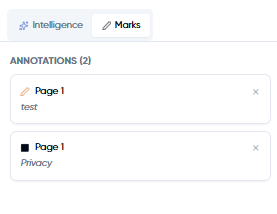
- Open a capture in Review and click Annotate on its toolbar. An Annotations panel opens listing each page and your annotation count.
- Choose the highlight or redaction tool and draw it over the relevant part of the page.
- Each addition appears in the Annotations panel to the right — redactions are listed alongside highlights and notes, so you can see everything you've marked up in one place.
- Edit the note or remove any annotation or redaction at any time!
Annotations
Highlight passages and add text or notes to call out the content that matters and tie it to your case.
Redactions
Draw a redaction box over anything you need to hide, such as a bystander's information or personal details.
They stay editable while you work
In the app, annotations and redactions can be adjusted or removed at any time — nothing is permanent until you export.
What happens on export
When you export a capture with annotations and redactions, Review flattens them into the exported PDF. Redacted content is permanently obscured in that file: it can't be viewed, recovered, or searched — including by computer — so there's no risk of hidden text sitting under a black box. Your original capture is untouched by any of this, so you can always go back and export a clean original later.