
The Advanced capture options section in the Page Vault Browser's Capture panel gives you finer control over how a webpage is captured. Check the Advanced capture options box to expand the menu. Below is a breakdown of each setting and when to use it.
Note: The legacy "Select Scroll Box to Capture" option is no longer in Advanced capture options. Capturing a single scrollable area is now a dedicated capture type — choose Specific Scroll Box from the Capture Type dropdown at the top of the Capture panel.
Skip Loading Content First
By default, Page Vault automatically scrolls a webpage from top to bottom before capturing to render any lazy-loaded content, images, or pop-ups. Toggle this on to skip that pre-load step and start capturing the page exactly as it appears right now.
When to use: To capture the page exactly as it looks now — useful when you've already scrolled, expanded sections, or arranged the view by hand.
Header on First PDF Page Only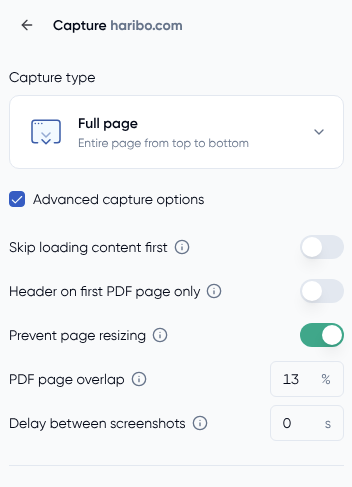
Many websites have a floating header or navigation menu that remains visible as you scroll. Toggle this on to ensure the header appears only on the first page of your capture, preventing it from repeating on every PDF page.
When to use: To prevent headers from hiding content on subsequent pages.
Prevent Page Resizing
This setting captures the page at its natural width without any resizing applied. The toggle replaces the legacy "Standard Width" setting — same default behavior, clearer label.
- Toggled off by default
- Helps preserve the page's original layout and formatting
When to use: Leave disabled for the most accurate visual output. Toggle on only if content is being cut off, shifted, or appears at an unexpected width in your captures.
PDF Page Overlap
Page Vault captures include a portion of the previous page at the top of the next page. This overlap helps confirm that content hasn't been cut off or skipped during capture.
- Default setting: 13% of the page height
- Adjustable: Increase or decrease the percentage as needed for clarity
When to use: Raise the value if the content appears to be cut between page breaks. Lower it to reduce repeated content in long captures.
Delay Between Screenshots
Some websites render content with a slight delay as you scroll. Increase the delay to give the page more time to load between screenshots, so nothing is missed in the final PDF.
- Default setting: 0 seconds
- Adjustable: Enter the number of seconds Page Vault should wait between screenshots
When to use: If you notice loading issues, missing content, or animations that haven't fully rendered in your capture.
Use these advanced options to customize your captures for accuracy, clarity, and full content coverage.